
INSTRUCTION MANUAL
DNN9350BT/ DNN9350BTM/ DNR8035BT/ DNR8035BTM
CONNECTED NAVIGATION SYSTEM / CONNECTED MONITOR WITH DVD RECEIVER
INSTRUCTION MANUAL
CONNECTED NAVIGATION SYSTEM / CONNECTED MONITOR WITH DVD RECEIVER
The method for turning on the power varies between different models.
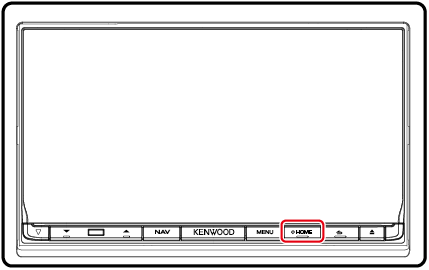
The unit is turned on.
Press the <HOME> button for 1 second.
|
If it is your first time turning the unit on after installation, it will be necessary to perform Initial setup. |
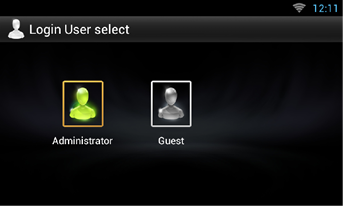
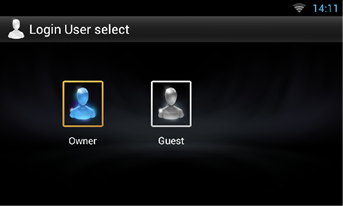
When you selected Administrator or Guest, you do not need to enter a password.
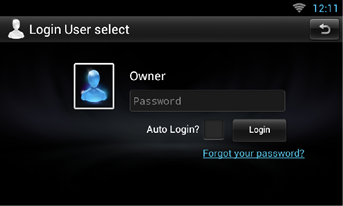
[Auto Login?]: Checking this checkbox allows you to log in to the system automatically from the next time.
|
NOTE
|
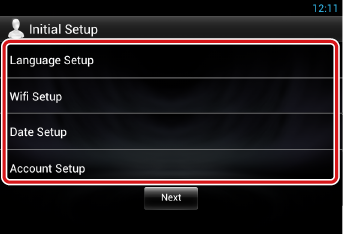
Perform this setup when you use this unit for the first time or when you reset the unit. See Resetting the Unit.
|
Language Setup |
|
Select the language used for the GUI and input methods. Default is “English (United States)”.
|
|
WiFi Setup |
|
Configure settings for connection to Wi-Fi.
For details on operation, see Wi-Fi Setup. |
|
Date Setup |
|
Set the date and time.
For details on operation, see Clock and Date Setup. |
|
Account Setup |
|
Set the information about the user of this unit.
For details on operation, see About Account. |
|
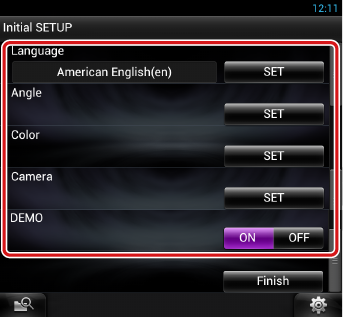
Locale |
|
Select the country for the navigation system.
|
|
Language |
|
Select the language used for the control screen and setting items. Default is “American English (en)”.
For details on operation, see Language setup. |
|
Angle |
|
Adjust the position of the monitor. Default is “0”.
For details on operation, see Monitor angle control. |
|
Color |
|
Set the screen and button illumination color. You can select whether to allow color scan operation or select a fixed color for operation.
For details on operation, see Panel color coordinate. |
|
Camera |
|
Set the parameters for the camera.
For details on operation, see Camera Setup. |
|
DEMO |
|
Set the demonstration mode. Default is “ON”.
|
|
NOTE
|


© 2014 JVC KENWOOD Corporation
 ].
].