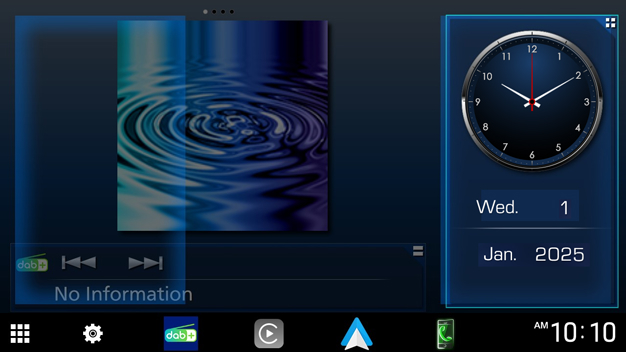
Drive Widget Panel
You can change the widget.
- DMX9724XDS
Press the HOME button.
DAX8000XDS
Touch at the top of the screen.
Touch HOME on the popup menu.
 - HOME screen appears.
- Touch the right top corner of the drive widget panel.
- The drive widget list appears.
- Touch the desired widget.
- You can select from the following widgets.
- Clock Widget
- Compass Widget
- EQ Setting Widget
- Camera Widget
- iDatalink Maestro Widget *
- ADAS Widget *
- Displayable widgets vary depending on the type of the connected iDatalink Maestro (commercially available) and the model of the vehicle.
To change the widget position
You can change the widget panel position to right or left. If the drive widget panel position is changed, the full screen widget panel position and flexible source widget panel position are also changed.
- Touch and hold the drive widget panel.
- Widget customize mode is activated.
- Drag the drive widget to right or left.